What a Generated Pixel Widget Needs to Earn Home-Screen Space
Google’s November rollout includes custom widgets. A useful test starts with data freshness and a fallback.
In this article
- What Google actually announced
- Make a first widget that can fail safely
- Separate stale from empty
- Read the screen the way you use it
- Keep a direct route to the source
- Write the prompt as a small specification
- Design a freshness exercise with known changes
- Test denied access without using real sensitive data
- Make the fallback work when you are in a hurry
- Make an explicit keep-or-remove decision
- Keep a small reference note
A widget gets one glance before you pick up a phone or put it back down. That makes a beautifully generated flight countdown with an old departure time worse than a plain shortcut that opens the current booking. The November Pixel Drop gives supported Pixel owners a new way to build widgets. Its usefulness depends on what the widget can retrieve, how honestly it reports uncertainty and where it sends you when the answer matters.
What Google actually announced
In its November 10, 2026 release, Google described asking for a custom widget in natural language, with examples such as shopping-spend summaries, a game-day display and a travel countdown. The published footnote lists the Pixel 10 and Pixel 11 families in select markets, with specific eligible models and no Pixel 10a in that list. Rollout timing and actual results vary. Check the supported models and your own phone's available controls before counting on it for a trip.
Make a first widget that can fail safely
Use a local counting task first. Ask for a countdown to a fictional Saturday library trip at 10 a.m. in your own time zone. Keep the prompt to the thing you want to see, the information source you intend to use and the expected action when you tap. A widget that can only display a static countdown may still be useful. You can see what it does without giving it access to a busy calendar or a set of private bookings.
Once it is on the home screen, change the fictional calendar entry if the widget claims to be linked to it. Compare the reported time with the original event. Check immediately, again after opening the source app and once after locking and unlocking the phone. Treat this as an observation from that phone on that build. One quick update cannot establish a refresh schedule.
Separate stale from empty
A zero can be a real number, a failed load or an absence of permission. Look for a field that distinguishes those cases. A spending example is especially good at exposing ambiguity: enter a harmless dummy amount in a supported test account, then make the source unavailable and look at what remains. If a perfectly plausible number is still displayed, the date or data source should be visible before you make a decision from it.
Time zones deserve their own test. A 9 a.m. appointment in the city's local time can be displayed as 9 a.m. at home if a widget stores the clock time without its zone. Avoid changing the system time on a phone you rely on for security codes. Use a sample event explicitly created in a different zone and compare it with the source calendar's converted view.
Read the screen the way you use it
Resize the widget to its smallest useful footprint. Make sure the labels that qualify the numbers survive. A recurring temptation is to make the figure large and let the source or date fall away. On a bright home screen, check that the unit and date remain legible, and try system large text if that's part of your ordinary setup. Verify that a tap opens the expected app or detail rather than a plausible but unrelated page.
Look at lock-screen and home-screen access separately. A household budget, boarding details or private destination could be visible to anyone holding an unlocked phone. Give the generator the least information needed for the display you want. The easiest way to protect a private detail in a widget is to leave it out of the design.
Keep a direct route to the source
Choose a fallback that survives a delayed refresh or a software update. Keep an app shortcut beside the widget if that is the fastest way to verify its data. For high-consequence information such as a gate change, the original booking or carrier app is the place to act. A widget earns its place when it reduces routine checking and still makes the current answer easy to reach.
Write the prompt as a small specification
A short prompt is easier to evaluate if it identifies the value, its time reference and the source. A useful fictional request is “Show days remaining until Saturday's 10 a.m. library visit, using the calendar event named Library Test. Display the event date next to the count. If you cannot read the event, show Open Calendar.” The platform may implement only some of those instructions. Review the widget as built and decide what to verify manually. Exact wording and supported controls vary, so treat the prompt as a design brief rather than an executable contract.
An explicit time convention prevents mistakes that look attractive on screen. If it is 8 p.m. Friday and the event starts at 10 a.m. Saturday, there are fourteen hours to go. A days-only widget may display one calendar day, or zero full twenty-four-hour periods. Both calculations make sense in isolation. Pick the one that answers your question and request a label that clarifies the unit. For anything requiring preparation, “Tomorrow at 10 a.m.” may be more useful than a large isolated numeral.
Design a freshness exercise with known changes
Choose a source that you control and record when it changes, including its displayed time zone. Update a fictional event from 10 a.m. to 11 a.m., then observe the widget without immediately opening its own app. Check again after opening the source and after the next normal unlock. Note whether each action changes displayed text, timestamp, both or neither. If the widget remains at 10 a.m., verify the event changed in the intended calendar before diagnosing the widget. Shared calendars, duplicate event names and pending sync can present similar symptoms.
Design the exercise using a case where delay matters. A departure clock that briefly shows the old time but labels its last update can still be interpreted appropriately. A count with no timestamp needs a confident tap into the source. If the app offers no reliably visible indicator, make the widget point to an easy verification route or pick a job where stale information has little consequence. A local static event can remain a rewarding first trial even when a connected dashboard consistently lags.
Test denied access without using real sensitive data
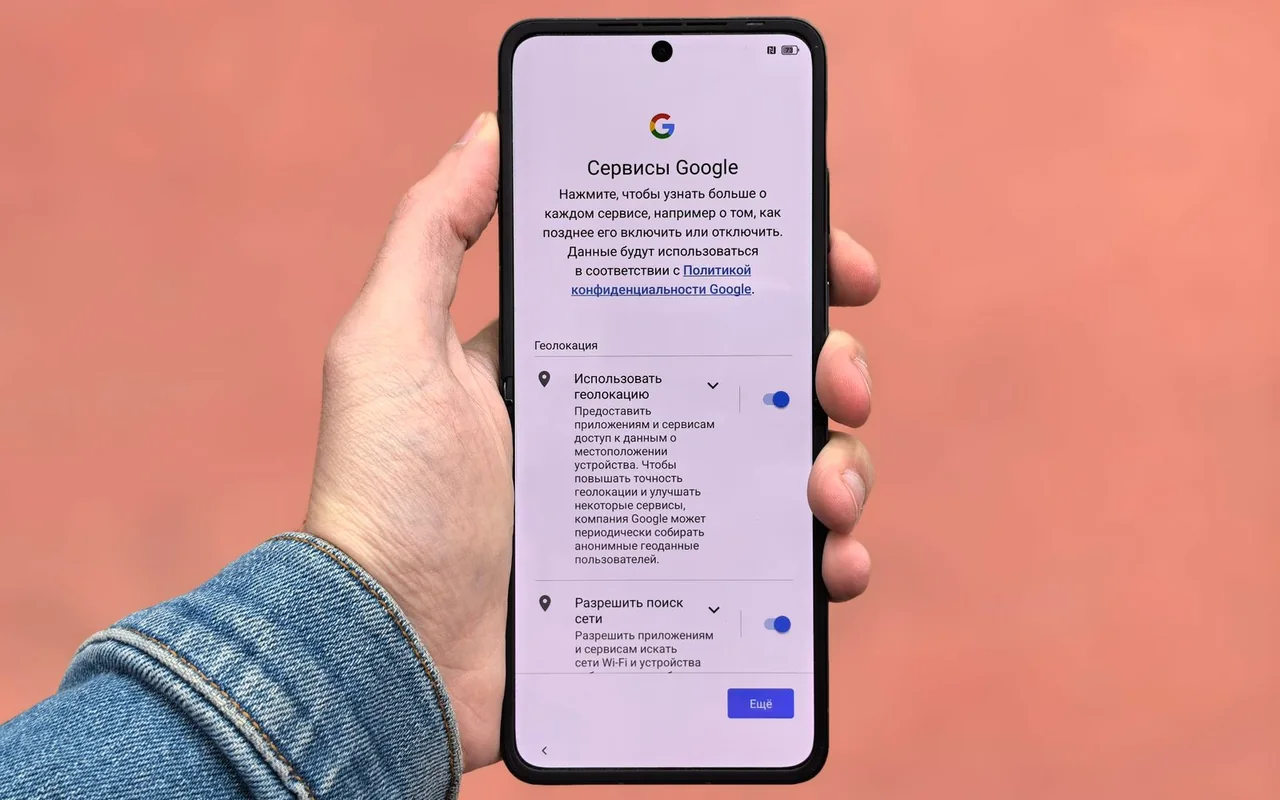
Look at the device settings the feature asks you to enable and compare each with the information you expect. A fictional event in a separate test calendar gives you a reasonable way to examine behavior without surfacing all household appointments. Remove a permission in a controlled test, return to the home screen and wait long enough to observe normal refresh behavior. Record whether you see a waiting message, no value, previously retrieved data or an explanation. Restore only the permissions you intend to keep.
A spending widget is a good place to distinguish ability from appropriateness. A readable daily sum might reveal more than a calendar countdown if someone regularly borrows the phone to make a call. A helpful design can show an abstract daily goal or a source shortcut without exposing sensitive transactions. The widget itself may be movable to a less visible home-screen page. Consider who sees the screen, what a screenshot might capture and whether the data is important enough to justify any requested access.
Make the fallback work when you are in a hurry
Put the widget and its source app side by side for two days. When you act on a value, open the source through the widget once and through the normal shortcut once. Count how many actions each route requires from the home screen. A widget that takes you to the generic app home page may save one glance but still leave you searching for the relevant event. A native widget that links directly to the relevant screen can be a better fit for some sources, even with less control over its appearance.
Tap the labels you want to rely on. A visible icon can appear interactive while the widget routes every tap to the same generic destination. Test with typical conditions such as poor signal and a locked screen after a normal unlock. Do not infer offline behavior from a fast demo while the underlying app is open and fully synchronized. If the fallback is the only reliable link, keep it obvious rather than burying it behind a visual effect.
Make an explicit keep-or-remove decision
Evaluate the generated panel against the job rather than the novelty. A score guide can require a readable value, correct identity and units, a clear stale or unavailable state, an acceptable level of exposure and a reproducible route to details. In an illustrative test, a local countdown that passes four of those checks may be fine for a one-off trip to the library. A flight widget showing the last booked time without a trustworthy source timestamp should remain an approximate cue, with documentation and the carrier app handling action.
Note the phone, software build and date. Availability can change after updates and the widget may rely on source app behavior. You do not need to repeat a full setup every time. Re-run one case that changes the source and one case that opens the fallback. Replace the widget if either result becomes confusing. A useful home-screen component deserves maintenance only when it helps you make an everyday choice faster.
Keep a small reference note
For a widget linked to a recurring task, save one sentence naming the source and the time convention. A countdown set in local time can behave differently from a calendar event fixed to a particular city's hour once you travel. Reopen the source before adjusting a generated panel whose meaning has changed. Clear the old widget when its job ends so a stale date does not compete for attention the next time you use the screen.