When a Thermostat Gets Instructions From Two Apps
Keep one clear place for schedules and verify manual overrides when multiple controllers can reach a thermostat.
In this article
- Write down every place that can change a setting
- Give the regular schedule one home
- Understand a direct command and a suggestion
- Run the manual-override exercise
- Set boundaries for an app or service change
- Inspect a mismatch using a small timeline
- Give each routine a role that can be explained
- Read a declined suggestion as information
- Account for a shared home and guest access
- Make the arrangement easy to check in a minute
- Leave prior settings recoverable
Two apps may agree that a thermostat is in Heat mode and still disagree about why the temperature keeps changing. One app may follow a weekly schedule while another reacts to somebody leaving home. A reliable household setup gives each change an owner and makes manual adjustments intelligible.
Write down every place that can change a setting
Inventory the thermostat's built-in schedule, each connected app, voice assistants and any utility or occupancy program that can send commands. For each one, record the target, time and purpose in ordinary terms. A routine that leaves at 8 a.m. might start a hold, resume a schedule or set the device to Away. Those actions can look identical for twenty minutes and have different consequences later.
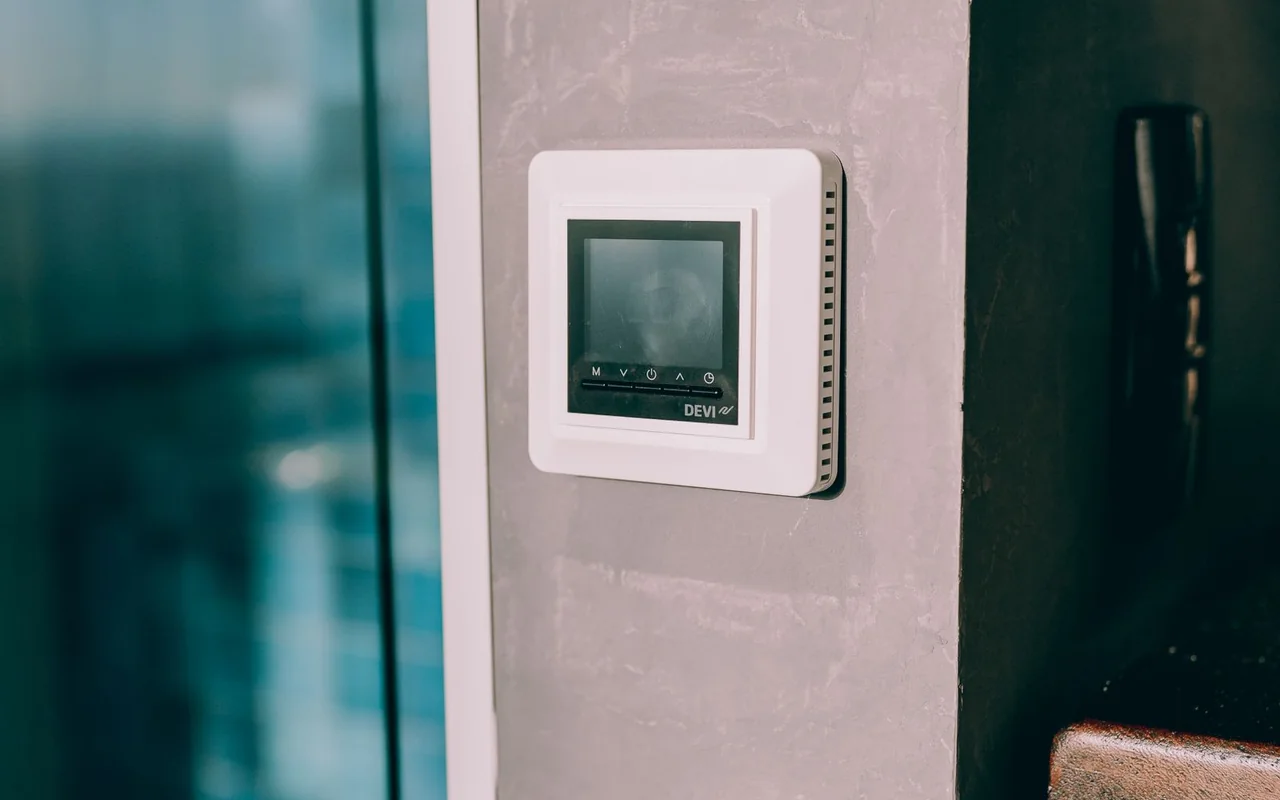
Use the device's physical display as a comparison point when possible. App displays can lag and may show “heating” while another screen shows a setpoint, which is a target temperature. Rechecking the two values after a change helps distinguish a control dispute from ordinary time needed for a room to warm.
Give the regular schedule one home
Choose a single controller for the baseline schedule and label it in shared instructions. Other apps can remain useful for a short override, voice access or an occupancy suggestion when their behavior is documented. If both apps have a weekday schedule, turn off the extra one through its user settings after recording its current configuration. Leave equipment safeguards and agreed program settings intact.
Pick a harmless future test window. Use a small adjustment within the household's ordinary range and record when it should expire. Confirm that a temporary hold ends in the way you expect before testing two controllers in succession. A mismatch after a schedule boundary is more informative than a change while the entire system is idle.
Understand a direct command and a suggestion
The June 2026 Matter 1.6 release describes Thermostat Suggestions. A compatible controller can submit a time-bounded recommendation tied to a preset the thermostat supports. A compatible thermostat can weigh that recommendation against preferences and current context, and provide a reason when it declines. The alliance specifically describes cases involving recent manual adjustments and utility programs. Support depends on the actual controller and thermostat implementation.
A device that receives an ordinary direct command does not acquire suggestion behavior simply because another platform has implemented it. Label your own setup accordingly. If the app does not say which type it sent, describe only what you can observe. Look for whose status changed, what the thermostat did and whether a reason appears in either app.
Run the manual-override exercise
Start with an ordinary scheduled temperature. Make a small change at the thermostat, then check both apps and their visible hold duration. With a compatible test routine, let a second controller make a documented request and note whether the thermostat follows it, delays it or reports a conflict. End by restoring the regular schedule and confirming the mode people expect to see.
Keep a shared note that explains how to make a temporary adjustment and how to get back to the normal schedule. Include the absence behavior if a thermostat uses occupancy. A visitor who raises the temperature needs a visible answer about when the house will return to normal. Avoid changing equipment configuration or wiring to test automation.
Set boundaries for an app or service change
An app update, new hub or household account transfer can reintroduce old defaults. Check schedule ownership after such a change, and remove stale routines after verifying the replacement. If a utility program affects comfort, compare its own stated options and conditions before changing participation. Keep one manual route to use while an app is offline.
Good coordination leaves a short explanation for a temperature change: scheduled, manually held, suggested or controlled by an enrolled program. When people can identify that cause from normal controls, the household needs fewer duplicate automations to work around surprises.
Inspect a mismatch using a small timeline
In an illustrative household, the thermostat enters ordinary morning mode at 7 a.m. A resident changes the target by one degree at 7:20. A motion-based routine runs at 7:25 and the schedule switches at 8. Write down each instruction, its expected duration and when the physical display changes. Separate the local room reading, active target and equipment state. An app indicator such as “heating” may properly remain on while the new target is already visible. That difference is a clue only if you know which value you are reading.
At 7:30, check whether the first change shows an expiration or a manually selected return to schedule. At 8:05, check both apps again. If the target changed before the known boundary, review the occupancy event logs or available history. A future schedule can appear in an app as a row of temperatures while being disabled at the thermostat. Use physical readings, status and documented command history to figure out what happened before editing a schedule.
Give each routine a role that can be explained
Let one system own the regular schedule. Give other authorized controllers roles such as short manual overrides, occupancy awareness or an explicit vacation mode. A second ecosystem can show the current target without being allowed to change it automatically if the platform offers suitable controls. Put the ordinary adjustment path somewhere people can see it. “Turn the dial by the hall, and use Resume to restore the schedule” is more helpful than a link to an app a guest may never install.
Write a separate line for long exceptions. A vacation override and a 30-minute hold serve different needs. If only one controller recognizes an exception, another can continue to send short settings according to its own rules. Test the return action and any permission changes with people who use the home. Avoid a setup that needs the primary resident's phone for every ordinary comfort adjustment. If a specific mode is important during an absence, use the thermostat or platform's documented support rather than a creative workaround.
Read a declined suggestion as information
Where Matter 1.6 Thermostat Suggestions are supported on both ends, an app might offer an occupancy or energy-related preset for a defined period. A compatible device can consider owner preferences and context before acting. If the device reports that a recent manual adjustment took priority, that result can be desirable. The person who made the adjustment does not have to race a second controller. Preserve that distinction in your notes. “Request received and intentionally deferred” explains more than “second app failed.”
A direct command can behave differently. Review the exact application documentation or activity log before interpreting a change as a suggestion. A setpoint shown in one app might update before the thermostat accepts it. In a pilot, track the timestamp and wording of the interface alongside the physical state. If your system has no clear indication, simplify its rule ownership until the visible behavior is predictable. Prefer an explanation grounded in what people can see over an assumed priority rule.
Account for a shared home and guest access
Someone sleeping during the day may experience an occupancy rule differently from somebody working elsewhere. Ask residents what counts as home and how each can suspend an automation. Changes based on a phone's location can run even though a visitor stays in the house. Check which household member owns the geofencing or permissions. Keep the location collection relevant to the job and choose an alternate strategy when a person does not want their phone linked to a thermostat schedule.
The same applies to utility programs. An enrolled program may set terms and behavior for a given event. Read how it indicates an event, what override paths it permits and how long it lasts. Keep a note of which routine should avoid conflict. Do not change installer-level controls, observation boundaries or safety protections to simulate participation. Pick an ordinary time window where a minor documented adjustment is safe and comfortable.
Make the arrangement easy to check in a minute
Make one entry for baseline owner, one for override path, one for unusual scheduled events and one for restart after an outage. Use that checklist the next time a thermostat, hub or account changes. Test a future schedule boundary rather than trying to remember whether Tuesday's late change happened before a firmware update. A snapshot of ordinary working settings can help if app presets are later recreated.
End the exercise by returning to the desired schedule and checking the physical setting with somebody who will use it the next day. If the setup feels confusing, turn a second app into a viewer or manual control until the workflow is clear. If it works, document one real example. A useful example might state that an 8 a.m. schedule took over after a temporary local hold expired, with both apps reflecting the change after a short delay. That explanation is what a household member needs the next time the temperature moves.
Leave prior settings recoverable
Before changing responsibility between apps, save the old schedule in a private note and label the version you intend to use. Include the ranges and times visible to ordinary household members. If the first morning is uncomfortable, that record lets you restore a familiar schedule without guessing. Do the same with the status of any occupancy feature you may pause. Restoration should require only the normal controls available to the people responsible for the home.